
Introduction
This is a feature in GZ Learn that allows admins to upload caption files for videos they upload as part of activities in their modules. For example, Microsoft Teams allows downloading a video recording (MP4) and a transcription file (VTT). Uploading both to an activity within GZ Learn will incorporate the transcription file data as video captions for learners to watch the video. We offer 5 language options to start: English (default), Spanish, French, Portuguese, and Chinese.
This guide demonstrates how to upload a transcription/caption file to a video in your module.
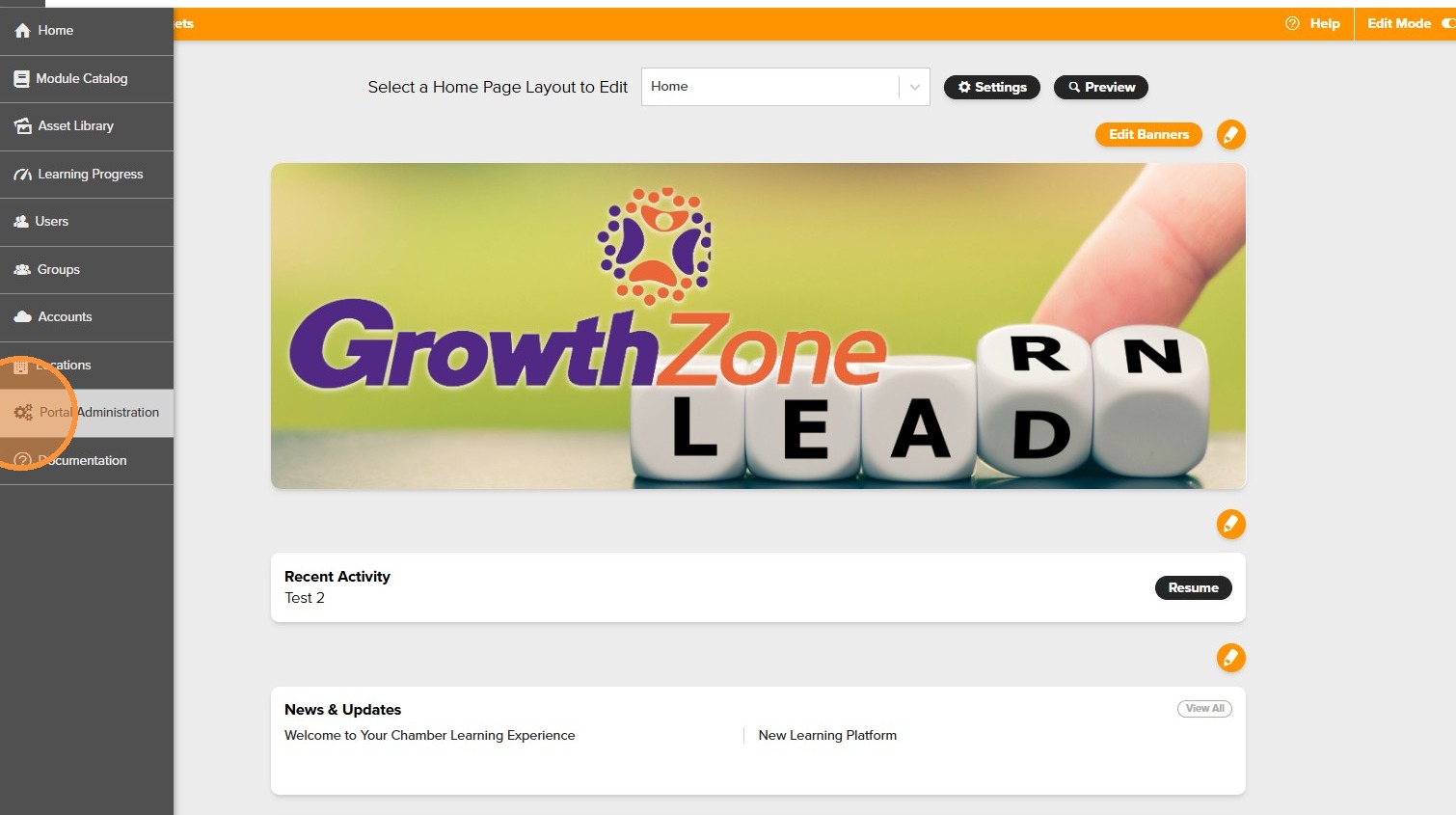
1. Go to Portal Administration in the left navigation.
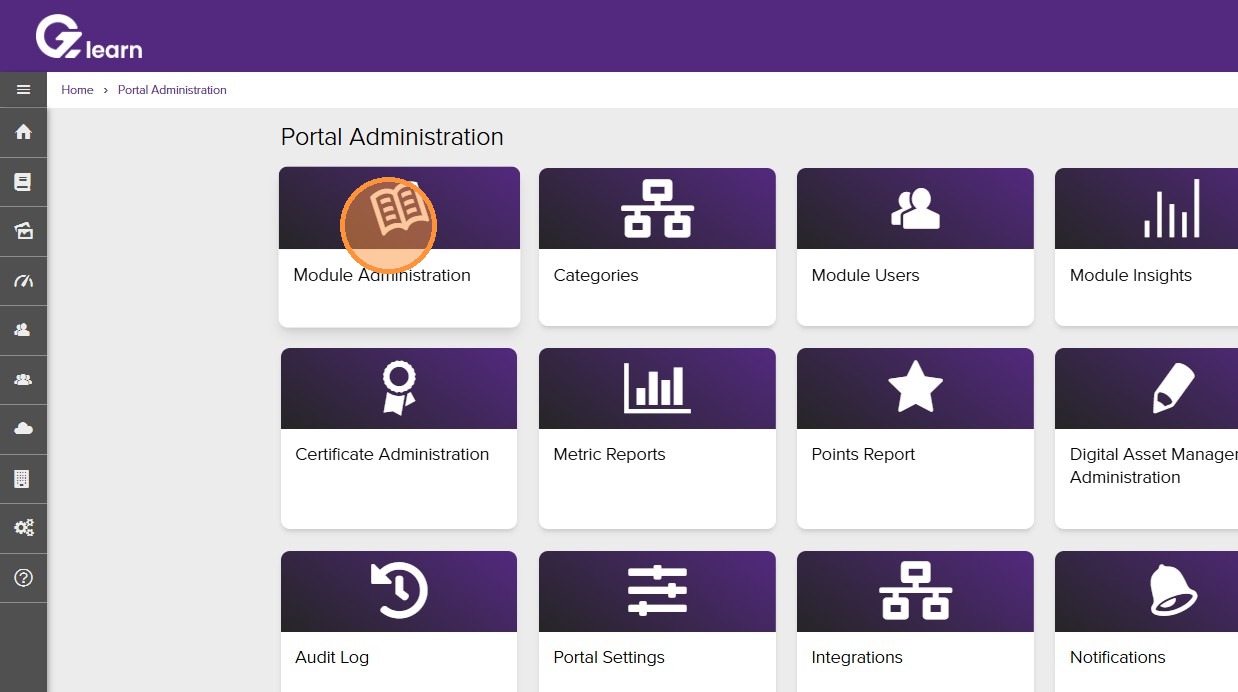
2. Choose Module Administration.
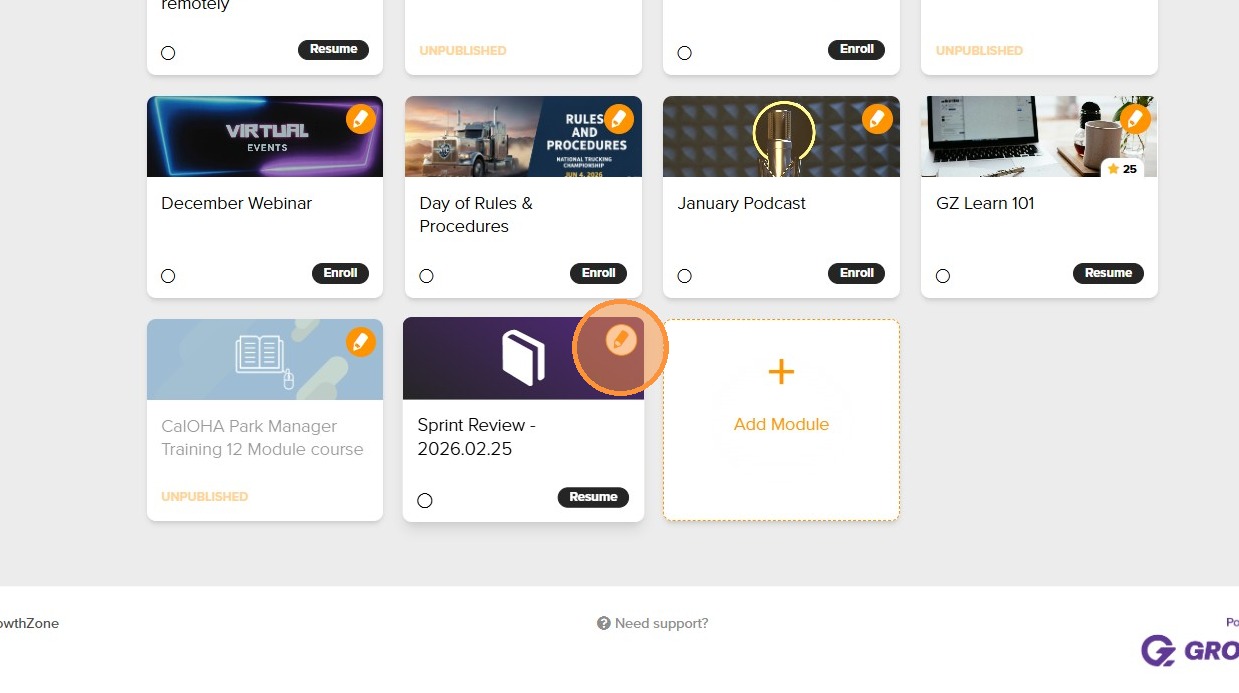
3. Click the pencil icon for the module you wish to edit.
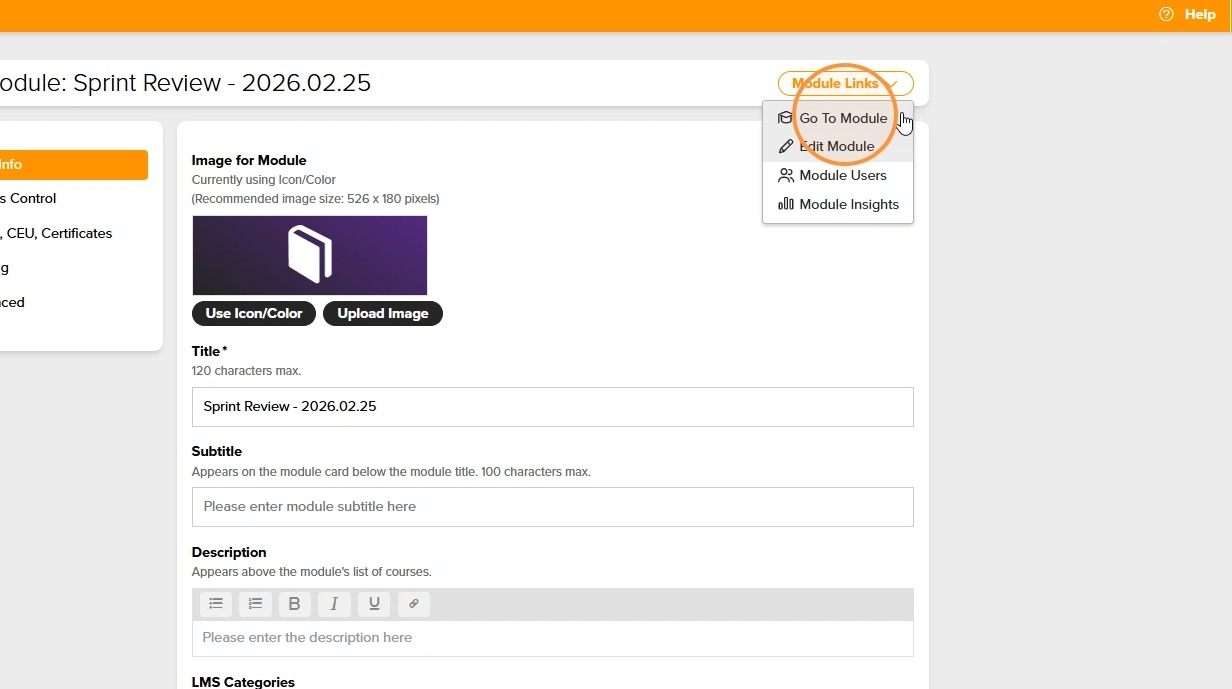
4. Under the Module Links dropdown, select Go To Module.
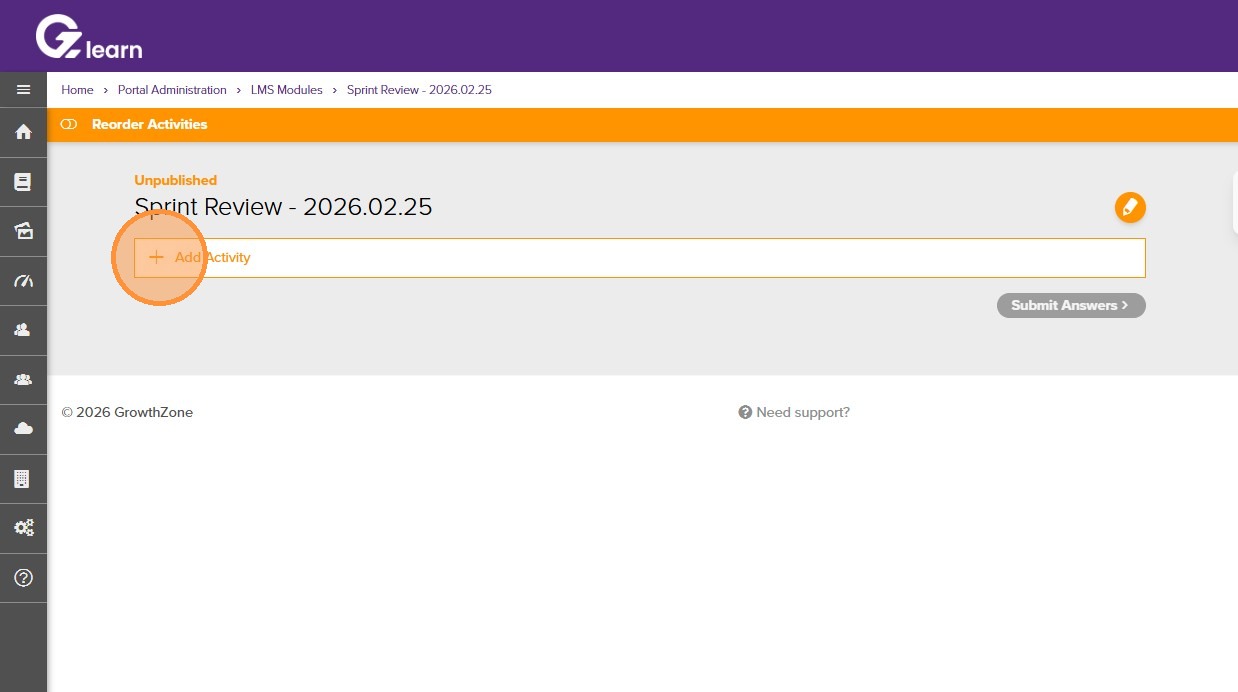
5. Click the + to Add Activity.
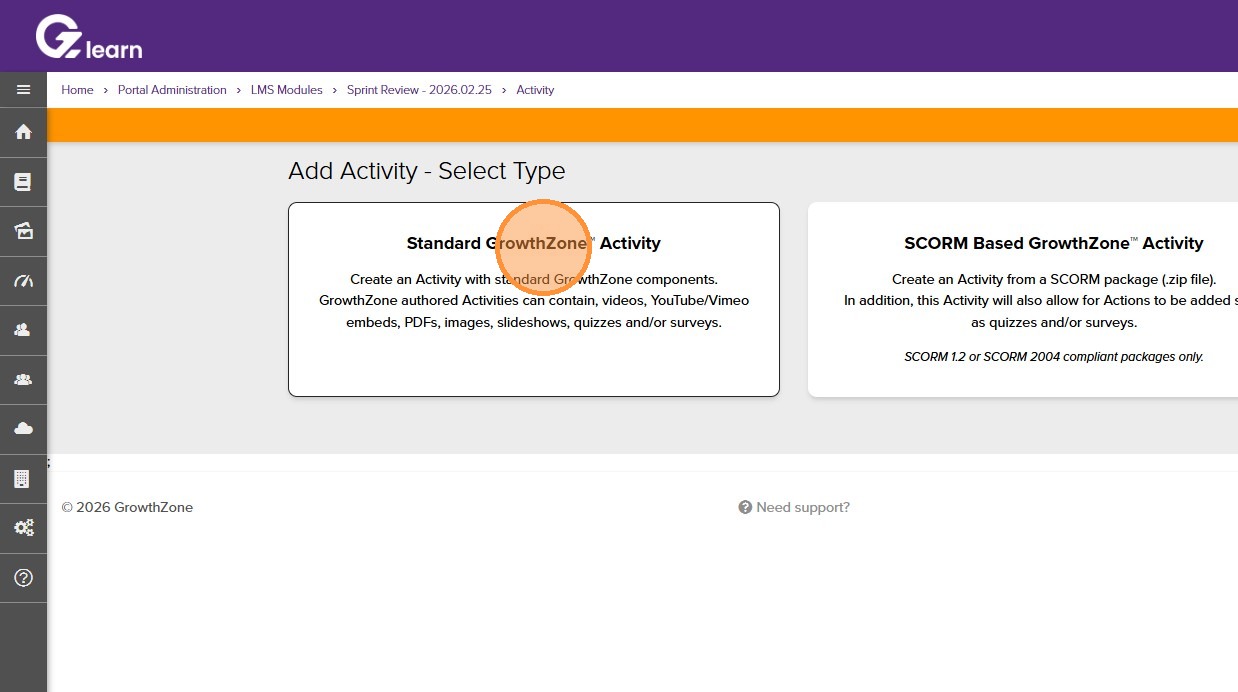
6. Choose Standard GrowthZone™ Activity.
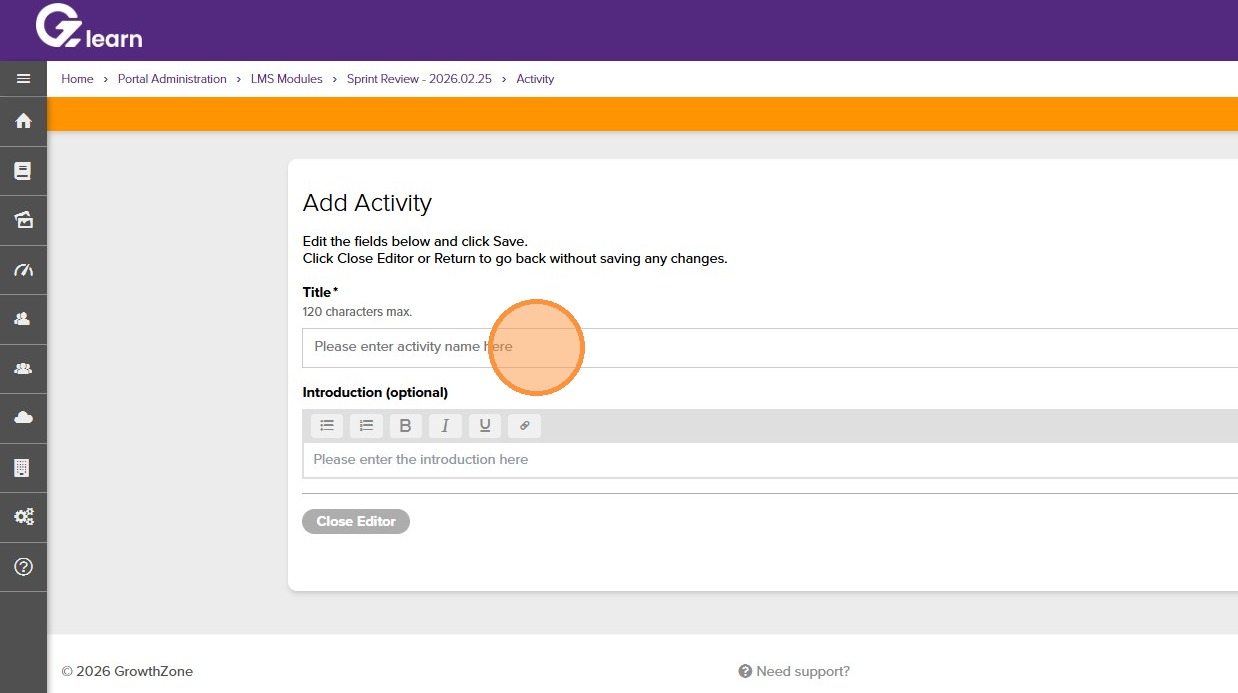
7. Enter the Activity Title. In this example we have "Meeting Recording".
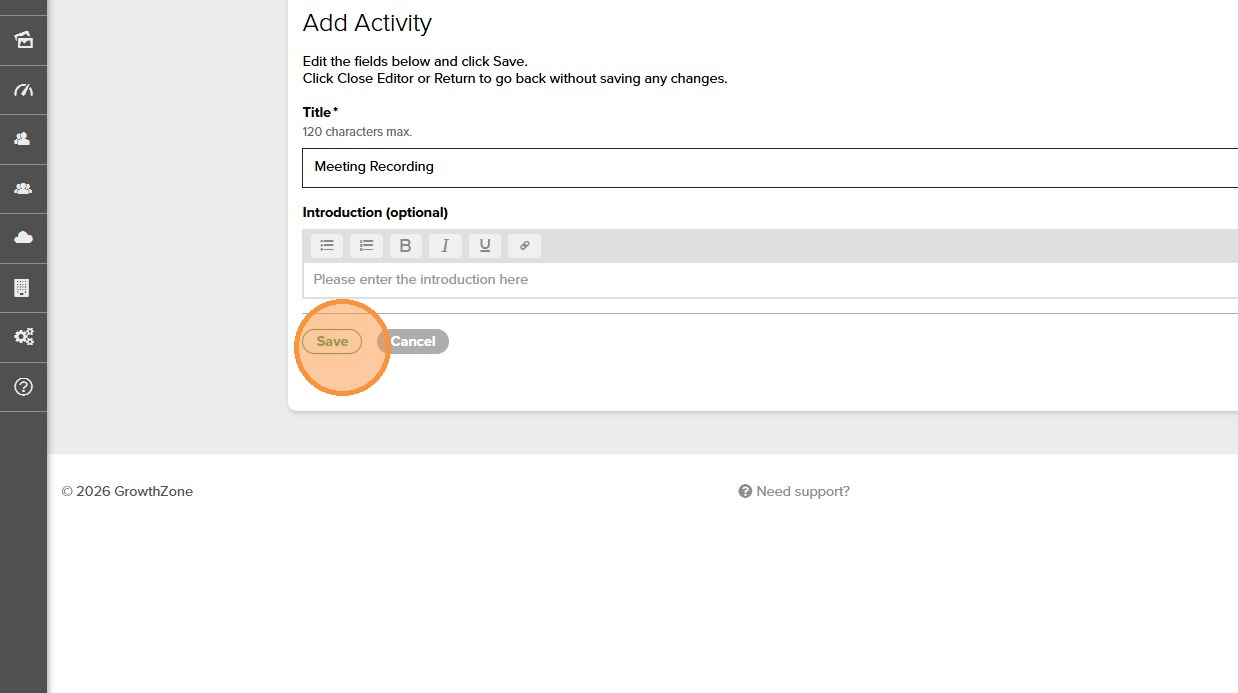
8. Click Save.
9. Click Add Video.
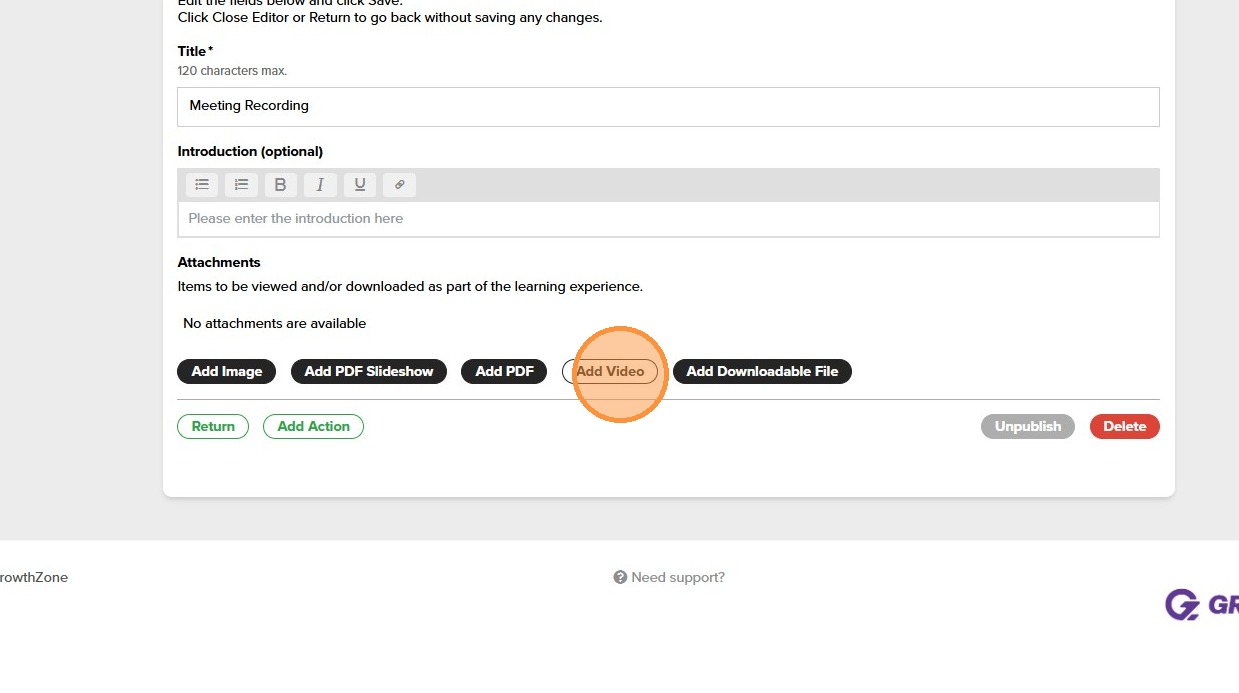
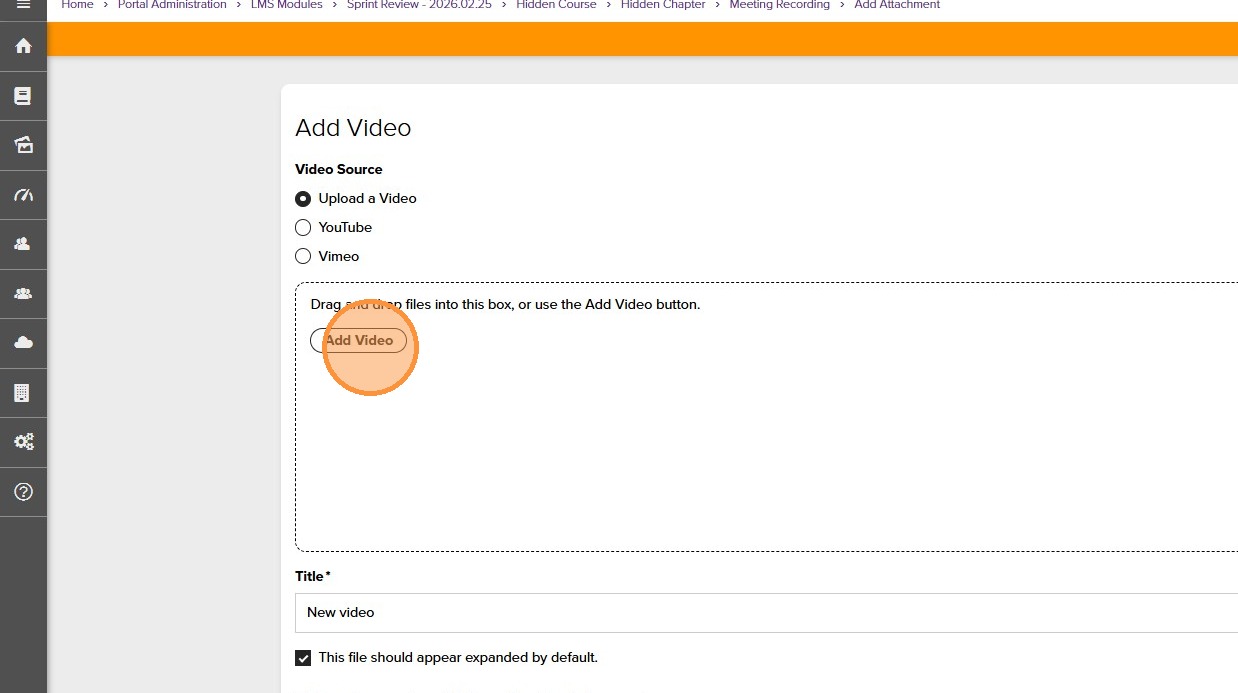
10. Click and drag your video file over the Add Video button.
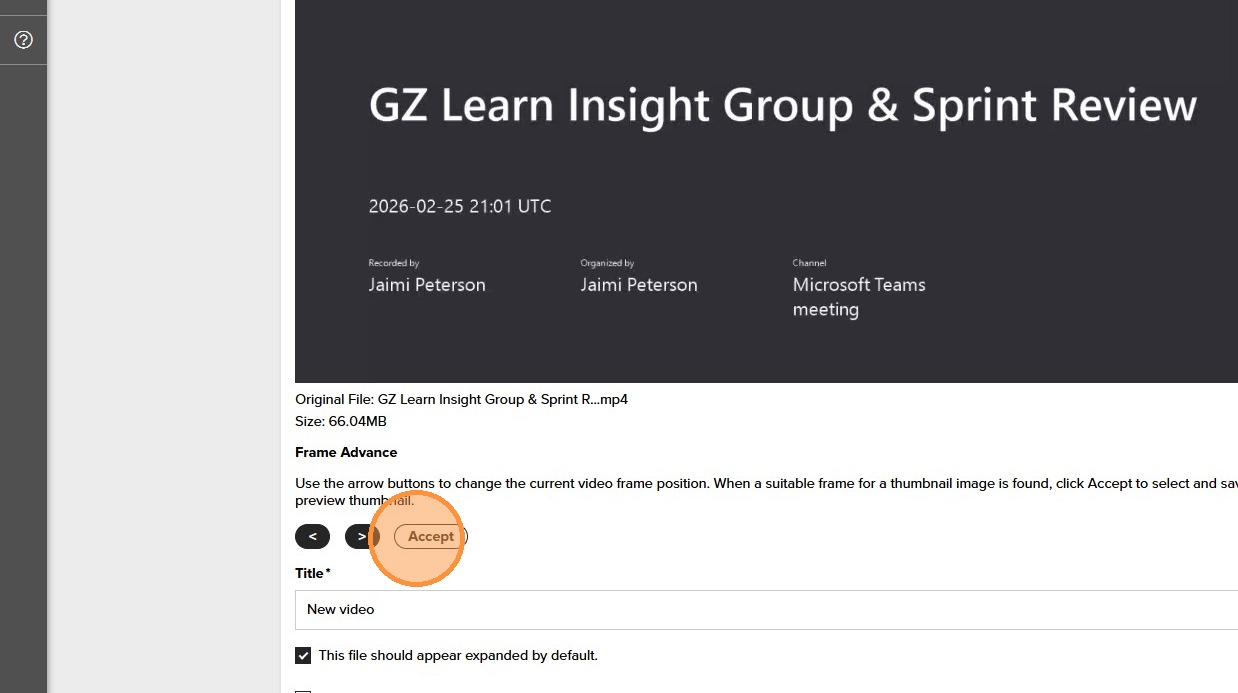
11. Choose a frame from the video as a thumbnail image and click Accept.
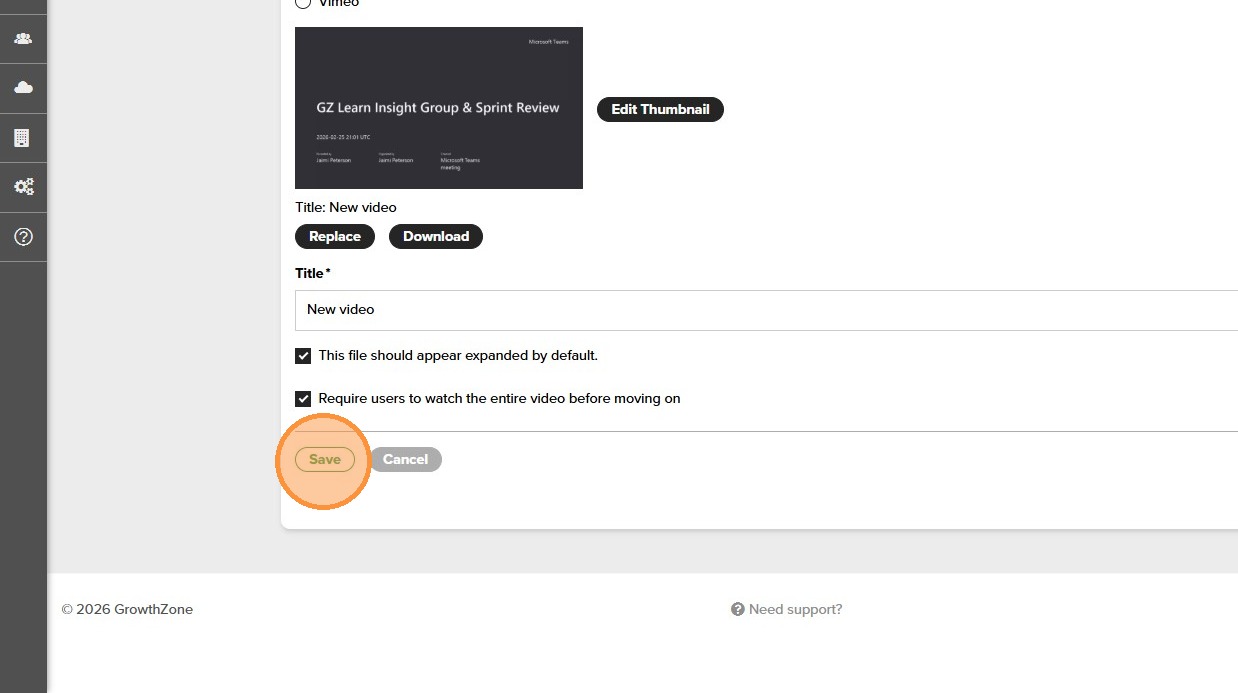
12. Click Save.
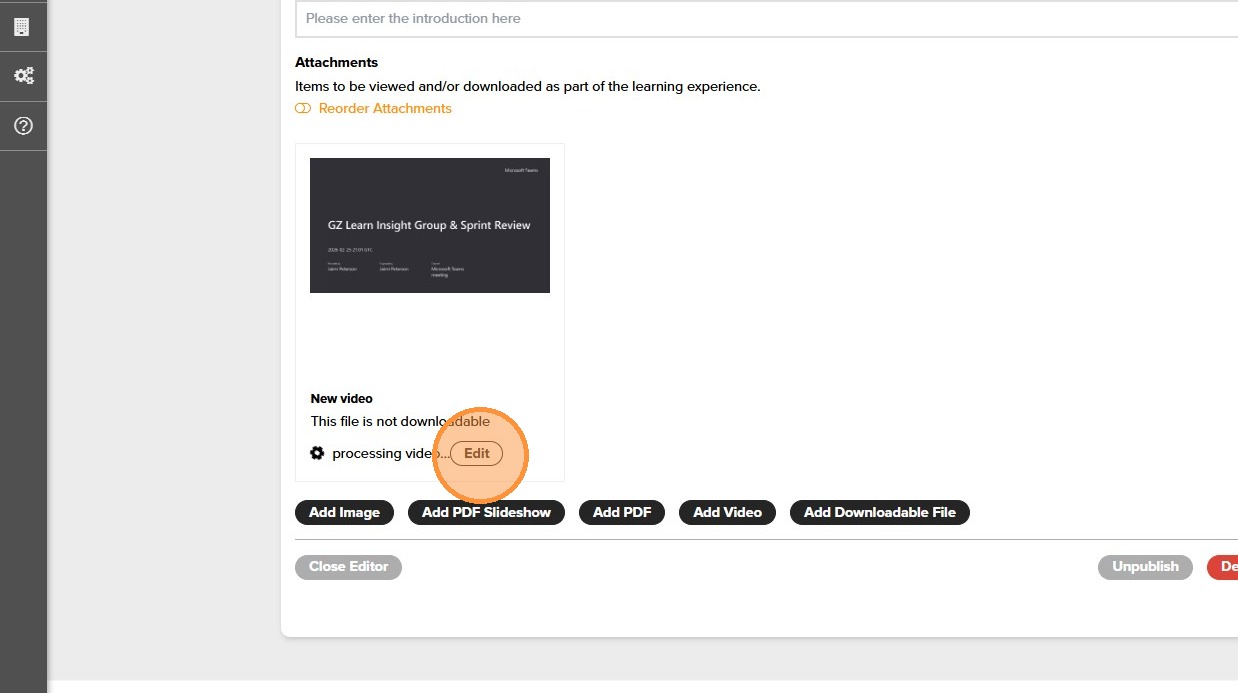
13. If there is a caption file to incorporate, click to Edit the video.
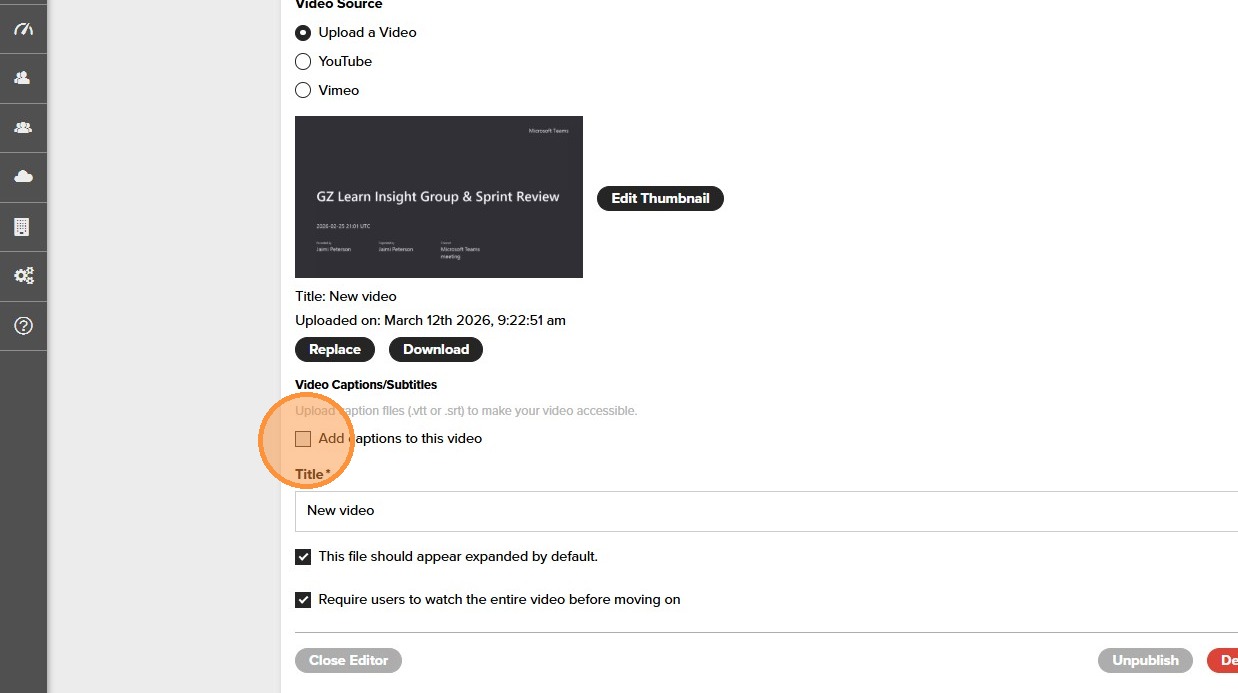
14. Enable Add captions to this video.
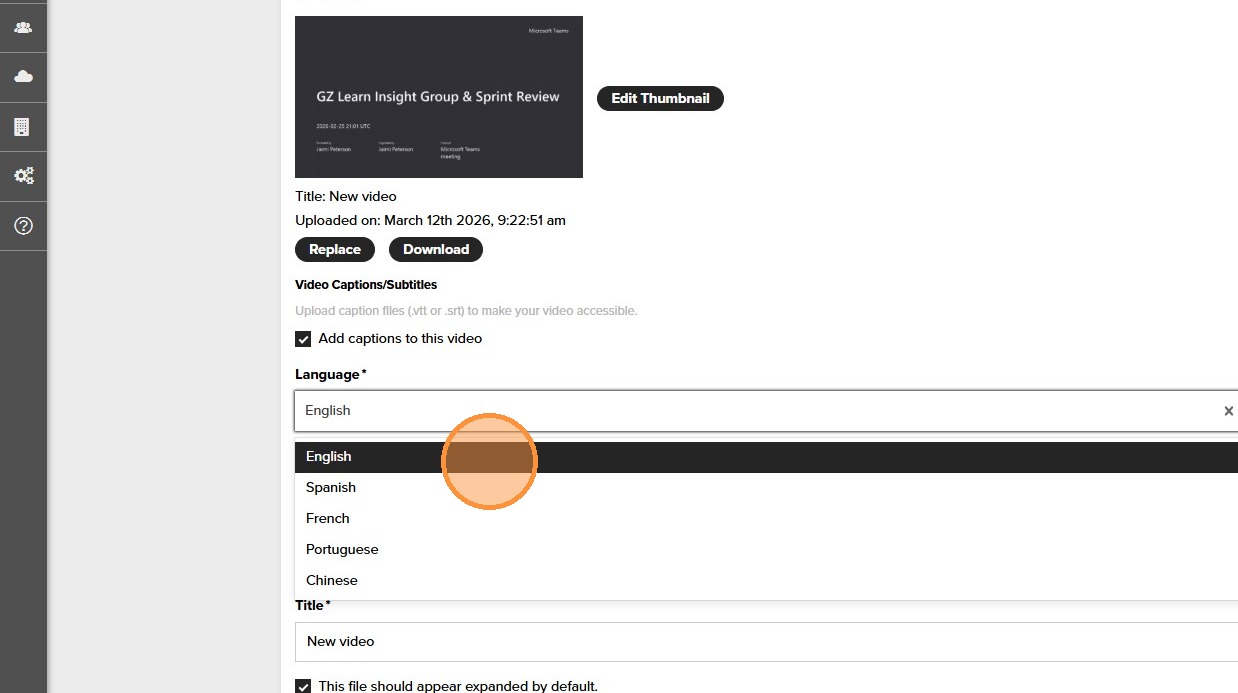
15. Choose the desired Language. English is the default.
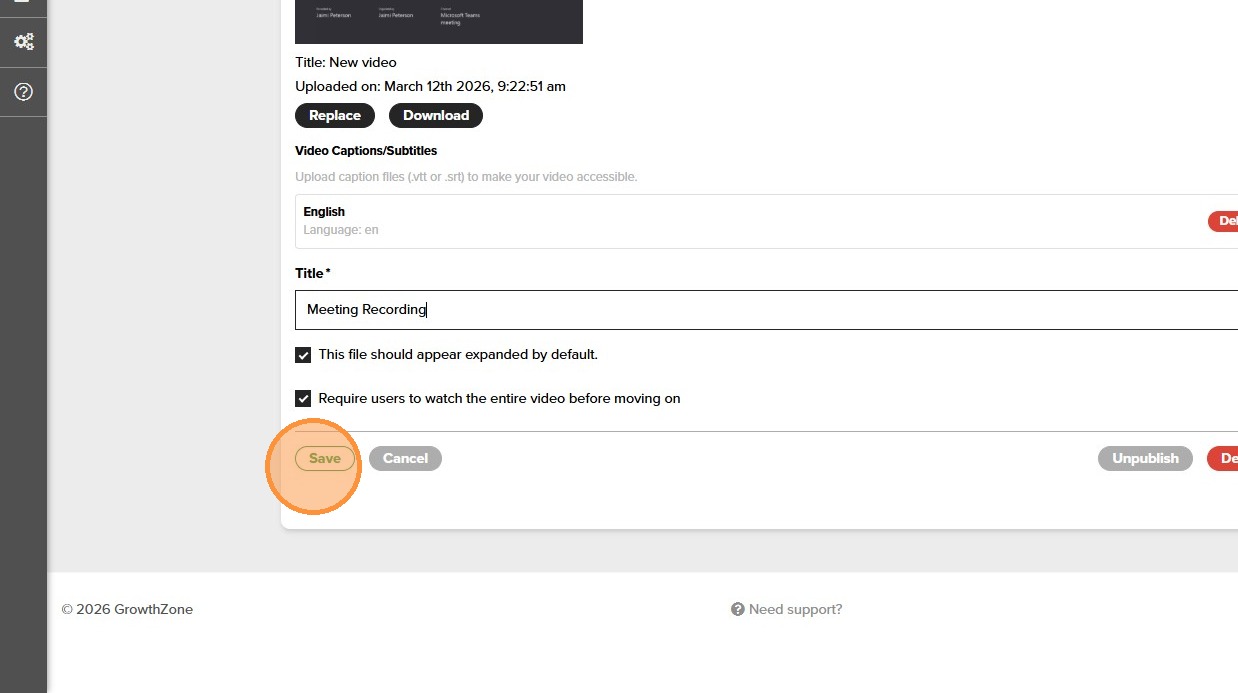
16. Click and drag your caption/transcript file to the screen to upload. vtt and srt formats are supported. Give the caption file a Title.
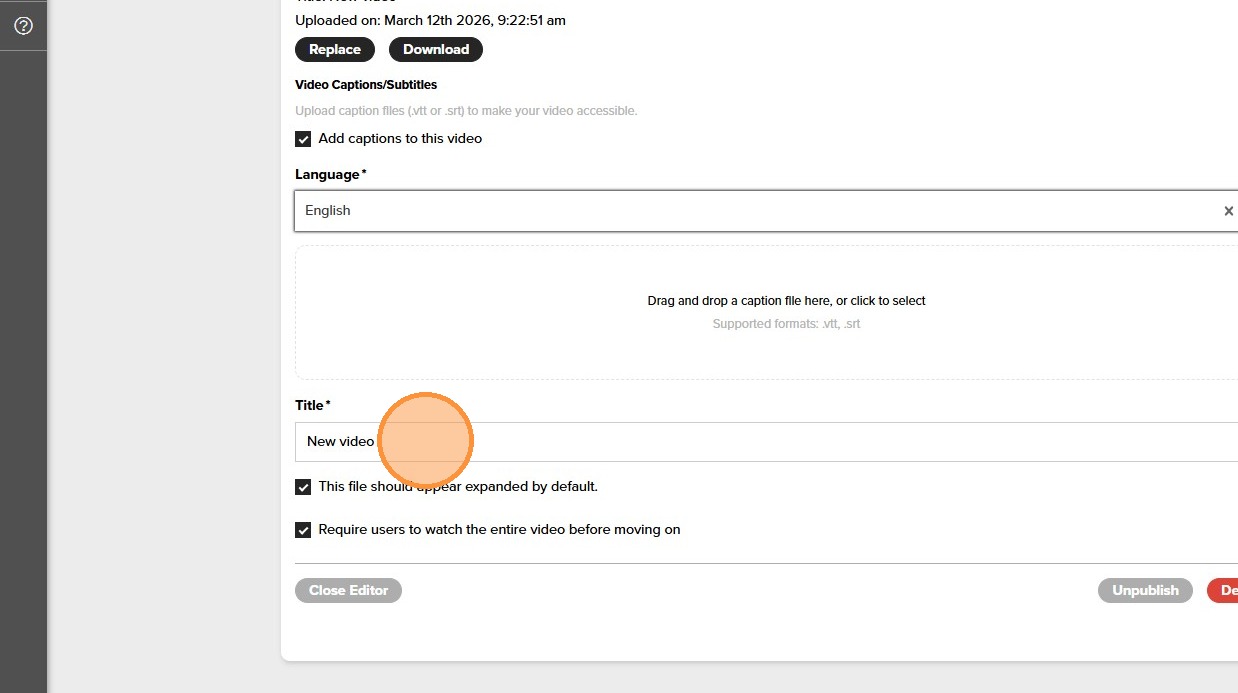
17. Click Save.
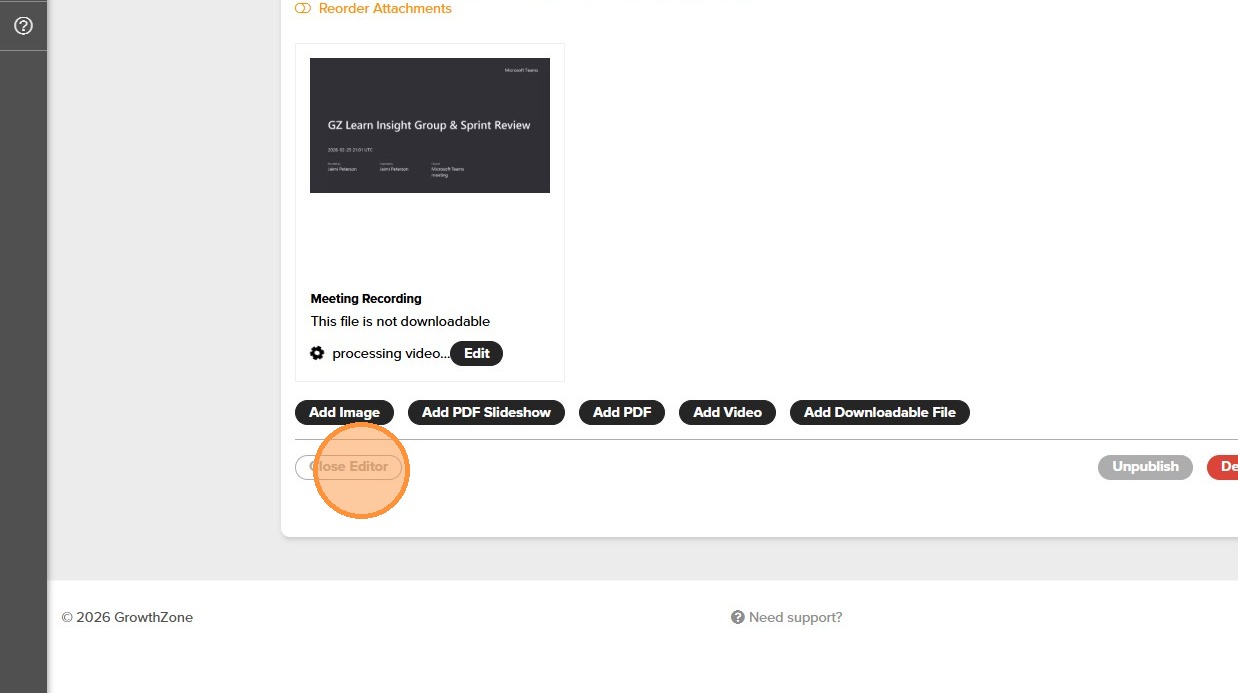
18. Close Editor.
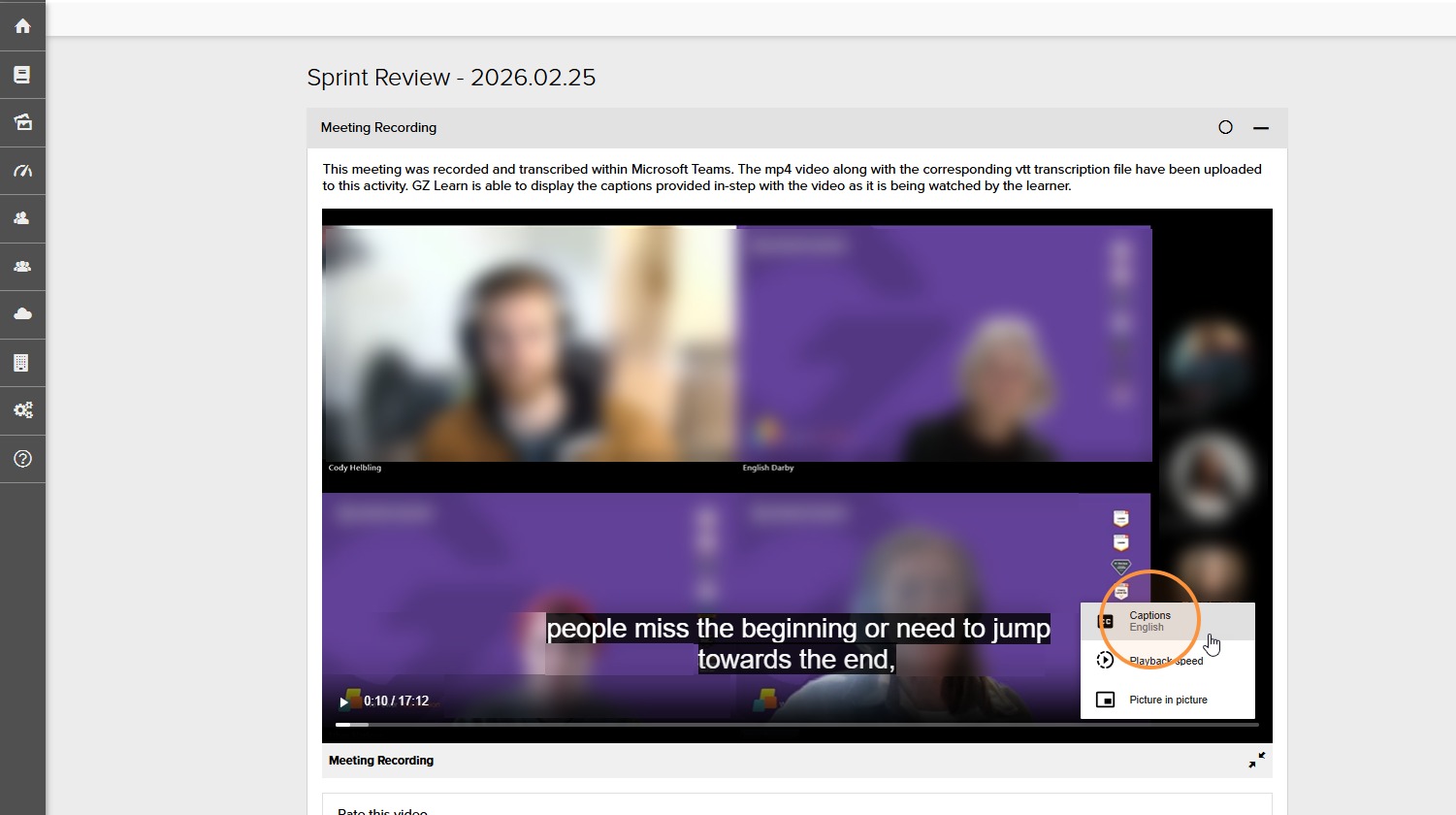
19. Captions will display over the video, timed per the data within the caption file. Learners can enable or disable captions in the ellipsis menu.
Comments
0 comments
Please sign in to leave a comment.